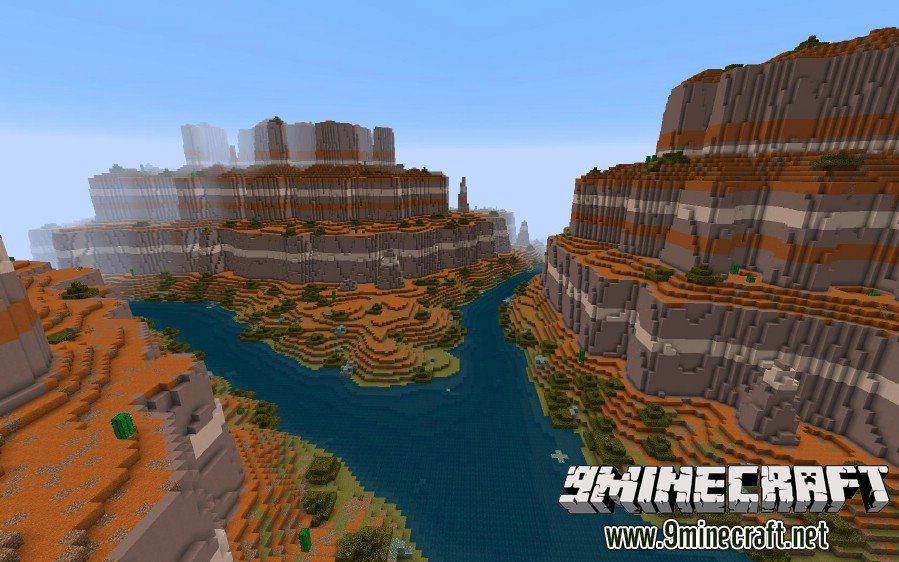
No modded Minecraft experience is quite as frustrating as firing up a new world, full of anticipation, only to be greeted by jagged terrain, floating islands, or a game crash. If you're struggling with Troubleshooting Common World Gen Mod Issues, you’re not alone. It's a rite of passage for many adventurers delving into the vast possibilities of custom landscapes.
World generation mods can utterly transform your Minecraft experience, turning vanilla biomes into breathtaking vistas or challenging new environments. But with great power comes the potential for great headaches. Getting these mods to play nicely with each other and your game client often feels like a delicate dance, one wrong step leading to a complete breakdown.
This guide is your seasoned companion, cutting through the confusion to offer practical, expert advice. We'll explore the common pitfalls, dissect cryptic crash reports, and arm you with a systematic approach to get your perfect world generating smoothly.
At a Glance: Key Takeaways for Smoother Worlds
- Always Create a New World: Updating world gen mods on existing saves is a recipe for disaster (hello, chunk seams!).
- Mod Incompatibility is King: Especially with landform mods, running two at once is almost guaranteed to cause issues.
- Server Setup Matters: Generate worlds locally first, then upload to avoid server-side anomalies.
- Crash Logs Aren't Scary: Learn to spot key error messages, even if you don't understand every line.
- "Modern Fix" Can Be a Culprit: On macOS, specifically, this mod has been known to cause immediate world generation crashes.
- Unsupported Mods Need Caution: If a mod's support has ended, be prepared for self-reliance or look for alternatives.
- The Binary Method is Your Friend: When conflicts arise, disable mods systematically to pinpoint the problem.
Why Your World Looks Wonky (or Won't Generate At All): Understanding the Root Causes
World generation mods rewrite the very fabric of your game's terrain. They introduce new biome types, alter geological features like mountains and valleys, or even change how structures integrate into the landscape. Think of a mod like "Worldgen Fix" – its entire purpose is to smooth out vanilla terrain, making it more aesthetically pleasing and traversable, especially in higher-height worlds.
But this fundamental tinkering means world gen mods are highly sensitive. They operate at the core level of how your game constructs its environment, making them particularly prone to conflicts and corruption if not handled with care. Most issues stem from a few core problems: mod incompatibility, incorrect installation/updating, or specific client/OS interactions. Understanding these underlying causes is the first step toward a lasting solution.
The Golden Rule: Start Fresh, Every Time
This cannot be stressed enough: when dealing with world generation mods, always create a new world. Attempting to update or install a significant world gen mod on an existing save file is practically an invitation for catastrophe.
The Menace of Chunk Seams
Imagine your Minecraft world as a massive quilt, made up of individual "chunks." When you install or update a world generation mod, it changes the pattern for how those new chunks should be stitched together. If you try to apply this new pattern to a quilt that's already half-finished with an older, different pattern, you end up with jarring, ugly "chunk seams."
These seams manifest as abrupt transitions in terrain: sudden cliffs where there should be slopes, oceans meeting deserts, or perfectly flat land next to a new mountain range. For a mod like "Worldgen Fix," which aims to reduce "jaggies" and provide smoother terrain, trying to update it on an old world defeats its purpose entirely and creates these visual glitches. Even if you're just adding a new biome mod, existing chunks won't update to accommodate it, leading to jarring borders.
Best Practices for Server Setups
Running a modded server adds another layer of complexity. Many server instances will attempt to generate a default world immediately upon first boot if one isn't present. This can create a conflict if your world gen mods aren't fully loaded and configured yet.
The expert recommendation is to generate your desired world in single-player first. This allows you to carefully select all your preferred parameters and ensure your modpack's world generation features are correctly applied. Once you're satisfied with the initial generation, take that world save file and upload it to your server. This bypasses the server's default generation process and ensures a consistent, seamless experience for everyone.
Untangling Mod Conflicts: The Compatibility Conundrum
Mod conflicts are the bane of any modded Minecraft player's existence, and world generation mods are particularly susceptible. Because they all vie for control over the same core process – how the world is shaped – they often butt heads.
Direct Conflict: Landform Mods Don't Play Nice Together
Consider the explicit warning about "Worldgen Fix": "This mod is not compatible with other landform mods." This isn't a suggestion; it's a hard rule. Landform mods fundamentally alter the shape of the terrain. If you have one mod trying to make mountains smoother and another trying to create dramatic, rugged peaks, they'll inevitably overwrite each other's effects, leading to unpredictable and often broken terrain.
Rule of Thumb: If a mod explicitly states it's not compatible with other "landform" or "biome generation" mods, take that warning seriously. Choose one primary terrain-shaping mod and build your modpack around it. Other mods that add structures, dungeons, or minor tweaks to existing biomes might be compatible, but always test thoroughly.
Indirect Conflicts: The "Modern Fix" Scenario (and Beyond)
Sometimes, the conflict isn't as obvious as two terrain mods fighting. Some issues arise from subtle interactions between mods, your operating system, or even your hardware. The "FTB University 1.19" crash provides a stark example. Users, particularly those on macOS M2 chips, experienced immediate crashes upon attempting to create a new world. The culprit? An interaction problem, potentially with a mod called "modern fix."
This scenario highlights a few key takeaways:
- Specific Hardware/OS Interactions: Newer hardware or operating system versions (like macOS 15.0.1) can sometimes interact poorly with older mod libraries or specific mod implementations.
- The "One Offender" Rule: Even in a large modpack, one single mod can trigger a cascade of errors or prevent the game from even starting. Identifying this specific mod is crucial.
- Trial and Error is King: When no obvious error code appears, or even when one does, systematically isolating mods (more on this below) is often the only way forward.
Diagnosing the Culprit: The Binary Elimination Method
When your world won't generate, or looks completely broken, and you suspect a mod conflict, the most reliable method is binary elimination. It's tedious, but effective:
- Backup Your Modpack: Always start by backing up your current modpack folder.
- Divide and Conquer: Take approximately half of your world generation-related mods out of your
modsfolder. (Keep them somewhere safe!) - Test: Try to generate a new world.
- If it works: The problematic mod is in the half you removed. Put the working half back, and repeat steps 2-3 with the removed half.
- If it crashes/fails: The problematic mod is still in the half you kept. Repeat steps 2-3 with the remaining mods.
- Narrow it Down: Continue halving the problematic set until you're left with just one or two mods. That's your likely offender.
- Research & Replace: Once you've identified the conflicting mod, research its known issues, look for patches, or find an alternative that provides similar functionality.
When Worlds Refuse to Create: Crash Troubleshooting
An immediate crash when you hit "Create World" is infuriating, especially when no clear error message pops up, like in the FTB University case. But even without an obvious in-game alert, your game client usually generates a crash report.
Reading the Unreadable: Crash Logs 101
Crash reports can look like a wall of incomprehensible code, but a few key phrases can act as signposts:
EXC_BAD_ACCESS (SIGABRT): This is a low-level error, often indicating a problem with memory access. The system tried to access memory it wasn't allowed to, leading to an "abort trap." In the FTB University case, this was a critical clue.KERN_INVALID_ADDRESS at 0x0000000000000000: This further specifies theEXC_BAD_ACCESS, indicating that the program tried to read or write to a null or invalid memory address. Again, this points to a fundamental programming error, often in how a mod tries to interact with the game's core systems or even the OS.Java: Server thread: While your game might be crashing during single-player world creation, the "Server thread" reference is common because the game's internal world generation logic often runs on a pseudo-server thread, even in single-player.- Mod Names in Stack Trace: Look for familiar mod names in the "stack trace" (the long list of functions). The mod name highest up in the trace, or mentioned multiple times around the crash point, is often the culprit.
Even if you can't decipher every line, copying the entire crash report and pasting it into a pastebin (like pastebin.com) to share on modding forums or Discord servers is immensely helpful for others to assist you.
macOS Specific Glitches: A Word on M-Chips
The FTB University crash on M2 chips running macOS 15.0.1 highlights a common problem: newer hardware and operating systems can introduce unforeseen compatibility issues, especially with older modpacks or Java versions. If you're on a cutting-edge setup and experiencing issues, consider:
- Check Mod/Modpack Age: Older modpacks (like FTB University 1.19, which is now considered aged for Minecraft standards) might not have been developed with modern macOS/M-chip architectures in mind.
- Java Version Conflicts: Ensure you're using the correct Java Runtime Environment (JRE) version specified by your modpack or launcher. Sometimes, too new a Java version can cause issues with older mods.
- "Modern Fix" Disabling: If crash reports point to similar low-level memory errors on macOS, specifically try disabling "modern fix" if it's in your modpack. This specific mod has a known history of conflicts in certain environments.
General Crash Solutions
Beyond mod-specific issues, a few general troubleshooting steps can resolve crashes:
- Clear Your Cache: Your launcher (FTB App, CurseForge, ATLauncher, etc.) often has a cache. Corrupted cache files can lead to launch or generation failures. Find the option to clear cache and try again.
- Repair Modpack/Instance: Most launchers offer a "repair" function that re-downloads and verifies modpack files, fixing any corruption.
- Fresh Installation: As a last resort, a completely fresh installation of the game, launcher, and modpack can resolve deeply rooted corruption or misconfigurations.
- Update/Reinstall Java: Ensure your Java installation is healthy and matches the requirements of your Minecraft version and mods.
Fine-Tuning Your Terrain: Avoiding Jaggies and Anomalies
Once you get past the crashes, you might still encounter visual issues like overly rugged terrain or those infamous floating islands. While perfect generation is elusive, you can significantly improve outcomes.
Height Map Considerations
Mods like "Worldgen Fix" are designed with specific parameters in mind. The research notes that it "was primarily tested on 512 and 1024 height worlds but also works on default height." This isn't just trivia; it informs your choices:
- Default Height Worlds: The mod will still function, but its effects might be less pronounced or optimized compared to its intended testing environment.
- Higher Height Worlds: For truly epic, smooth landscapes, consider setting your world height to 512 or 1024 if your mod allows it and your system can handle the increased load. This is where the mod's smoothing algorithms really shine.
Always check your world gen mod's documentation for recommended height settings or other world creation parameters.
Managing Story Structures and Landform Errors
"Worldgen Fix" also mentions that "New story structures will generate on different landforms and may appear abnormal." This is a trade-off. By altering the terrain fundamentally, the mod might displace or warp structures that assume a certain type of vanilla terrain.
- Accept the Quirks: Sometimes, you'll have to accept that custom world gen will have minor visual quirks with pre-defined structures. A floating village or a partially buried dungeon might just become part of your world's unique charm.
- Structure Mod Compatibility: If structures are a big deal for you, look for structure mods that are specifically designed to be compatible with popular world generation mods, or those that have robust placement algorithms to adapt to varied terrain.
Expectations vs. Reality: Floating Islands and Other Anomalies
Even the best world generation mods aren't "entirely infallible." The research notes that "Worldgen Fix" "significantly reduces the likelihood of floating islands or other terrain anomalies," but doesn't eliminate them completely.
- Procedural Generation is Complex: World generation is an incredibly complex procedural process. Perfect seamlessness across all chunk boundaries and biome transitions is almost impossible to achieve 100% of the time.
- Minor Glitches are Normal: A few floating blocks, a tiny water source in an odd spot, or a single "jaggie" might still appear. Decide what level of imperfection you're willing to accept. If these minor glitches are immersion-breaking, double-check your mod list for any subtle conflicts.
For those looking to explore a wider range of terrain modifications, understanding how these tools work is key to choosing your next adventure. You can find excellent options by looking into best world generation mods available for Minecraft.
The Lifespan of Mods: When Support Runs Out
Software has a lifecycle, and mods are no exception. The "Worldgen Fix" notice that "Support for this mod concluded on 01/01/24, meaning no further questions will be answered or updates provided" is a crucial piece of information.
End-of-Life Mods
When a mod reaches its end-of-life (EOL), it means:
- No New Updates: No more bug fixes, performance improvements, or compatibility updates for newer Minecraft versions.
- No Direct Support: The original author won't respond to issues or questions.
- Potential for Future Incompatibility: As Minecraft updates or other mods evolve, EOL mods are more likely to break or cause conflicts.
If you choose to use an EOL mod, you're doing so at your own risk. It might work perfectly for a specific Minecraft version and modpack configuration, but it's a static piece of software in a constantly evolving ecosystem.
Implications for Older Modpacks
The FTB University 1.19 issue is a perfect example of how the age of a modpack (and its constituent mods) can lead to intractable problems. "A permanent resolution is improbable due to the modpack's age," states the research.
This means:
- Outdated Libraries: Older modpacks often rely on outdated Java libraries or dependencies that conflict with newer operating systems or hardware.
- Lack of Development: No one is actively maintaining or patching these older modpacks or their individual mods to address new issues.
- Community Solutions Only: Your best bet is to scour old forum posts, Reddit threads, or Discord archives for community-discovered workarounds.
Community Solutions: Where to Look When Official Support is Gone
When official support for a mod or modpack is gone, the community becomes your primary resource:
- Modding Forums: Reputable Minecraft modding forums (like CurseForge forums, Planet Minecraft, etc.) often have archived discussions.
- Discord Servers: Many mod authors or modpack creators have Discord communities where legacy issues might be discussed, or even where community members have created their own unofficial patches.
- GitHub Repositories: Check the mod's GitHub page. Sometimes, an issue might have a community-contributed fix, or you can find forks of the project where others have taken over maintenance.
Your Troubleshooting Toolkit: A Step-by-Step Approach
To tie everything together, here’s a methodical approach to tackling world gen mod issues:
- Always Start with a Fresh World: If you've modified or added a world gen mod, delete your old world (or move it to a backup folder) and create a new one. This prevents chunk seams and ensures a clean slate.
- Verify Mod Compatibility:
- Read Documentation: Check every world gen mod's description for explicit compatibility warnings (e.g., "not compatible with other landform mods").
- One Primary Terrain Mod: Choose one major terrain-altering mod and try to stick to it.
- Isolate the Problem (Binary Method):
- If you have multiple world gen mods or a large modpack, systematically remove half your mods (starting with world gen-related ones) and test until you pinpoint the conflicting mod.
- Check for Known Conflicts: Search online for "[Mod Name] conflict [Other Mod Name]" or "[Mod Name] crash [Minecraft Version]" to see if others have encountered similar issues. Pay attention to specific OS/hardware notes (like macOS M2 and "modern fix").
- Analyze Crash Reports:
- If your game crashes, locate the crash report (usually in your Minecraft instance folder under
crash-reports). - Look for
EXC_BAD_ACCESS,KERN_INVALID_ADDRESS, or specific mod names in the stack trace. - Paste the report into a pastebin and share it on relevant forums.
- Launcher and Game Maintenance:
- Clear Launcher Cache: Use your launcher's built-in functions to clear its cache.
- Repair Modpack/Instance: Attempt to repair your modpack installation.
- Fresh Reinstall: If all else fails, a complete reinstall of the game, launcher, and modpack can resolve deep-seated issues.
- Check Mod Support Status: If a mod isn't working, verify its support status. If it's EOL, be prepared for more intensive self-troubleshooting or consider finding an actively maintained alternative.
- Server Specifics: If you're running a server, generate the world in single-player first, then upload the
worldfolder to your server. Never let the server generate the initial world. - Adjust World Parameters: Experiment with world height settings (e.g., 512 or 1024 for "Worldgen Fix") if your mod recommends specific values.
- Set Realistic Expectations: Remember that highly customized world generation, while amazing, can sometimes lead to minor anomalies. Perfect generation is often an ideal, not a guarantee.
Building Your Best Worlds: Proactive Tips for Modded Generation
Navigating the complexities of modded Minecraft world generation doesn't have to be a constant struggle. By adopting a proactive mindset and following these best practices, you can dramatically reduce your troubleshooting time and spend more time exploring.
Before even launching your game, take a few moments to plan your modpack. What kind of world do you envision? Do you want realistic terrain, fantastical biomes, or a specific structure density? This clarity will help you choose compatible mods from the outset. For comprehensive insights into the tools that shape your digital landscapes, exploring best world generation mods can provide a solid foundation for your choices.
Always keep your mod descriptions handy, pay attention to version numbers, and understand that some mods are simply not designed to co-exist. When in doubt, start small, adding one significant world generation mod at a time and testing thoroughly. Building stable, beautiful modded worlds is a journey of patience and methodical steps, but the reward of a truly unique and breathtaking landscape is well worth the effort. Happy crafting, and may your worlds be ever smooth and glitch-free!